
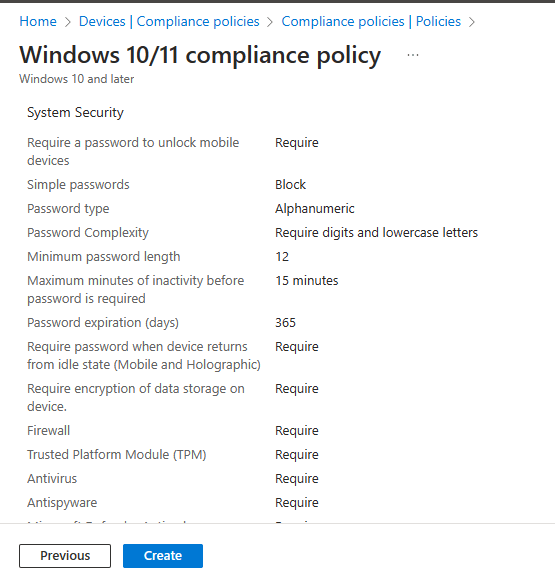
The Device Compliance Policy is the minimum baseline we require all assets to meet on a daily basis for business as usual (BAU) operations. Be careful not to confuse configuration and compliance policies, Microsoft explains the difference as below.
“Compliance policies are ‘rules’ that govern whether a device is allowed/blocked. They are settings that devices must meet to be compliant. It doesn’t force config setting on devices.
Configuration policies/profiles are settings/features that you ‘put’ on the device.”
There are two parts to compliance policies in Intune:
- Compliance policy settings – Tenant-wide settings that are like a built-in compliance policy that every device receives. Compliance policy settings set a baseline for how compliance policy works in your Intune environment, including whether devices that haven’t received any device compliance policies are compliant or noncompliant.
- Device compliance policy – Platform-specific rules you configure and deploy to groups of users or devices. These rules define requirements for devices, like minimum operating systems or the use of disk encryption. Devices must meet these rules to be considered compliant.
Further information can be found on the official Microsoft site here.
IMPORTANT NOTE.
Don’t deploy anything without testing first as you cannot easily roll back restrictive policies applied via Intune. For example, you apply a baseline to a device, but it causes issues so you need to roll back. You can’t simply remove that user or device from the policy to revert all the changes as described in these articles, cant-change-security-policies-for-enrolled-devices and i-changed-a-device-restriction-profile-but-the-changes-havent-taken-effect so make sure all profiles are tested individually to identify any potential issues before they are deployed to a live environment. I would recommend doing a test roll back to make sure you have a well tested back out plan.
We login at https://endpoint.microsoft.com and go to “Home” > “Devices” > “Compliance Policies”.

We select “Create Policy” > and “Platform type” we select Windows 10 and later, (as this whole series focuses on configuring Windows devices) and leave “Profile Type” as the default. Give the policy a name and a description.
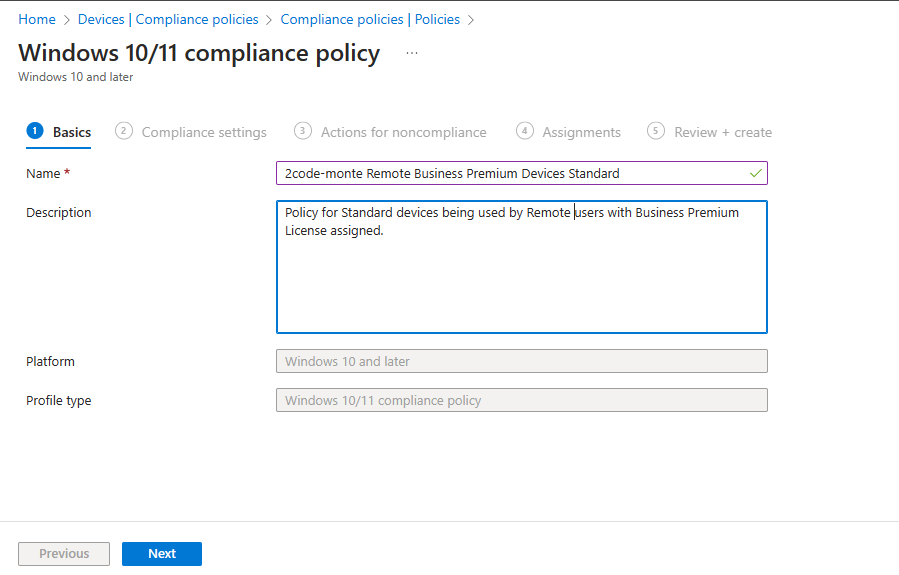
On the “Compliance settings” tab we configure the following.
Custom Compliance > Leave all as defaults
Device Health > Require all (As shown below).

In “Device Properties” if we want to set a minimum OS version, then we can check our assets using the “ver” cmd as shown below. You can then simply copy this into your settings. Of course you need to check that ALL your endpoints are on or above this version if you are configuring conditional access to block devices accessing organisational resources.

Below is an example configuration based on our discovered version. You should of course use the version you wish to use based on your endpoint estate.

“Configuration Manager Compliance” > Leave all as default unless you are using Configuration Manager with Intune to Co-manage devices, which is beyond the scope of this guide.
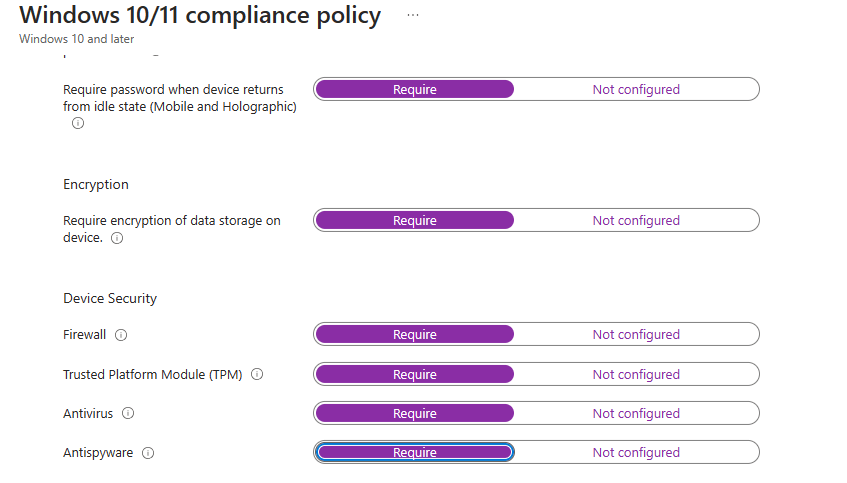
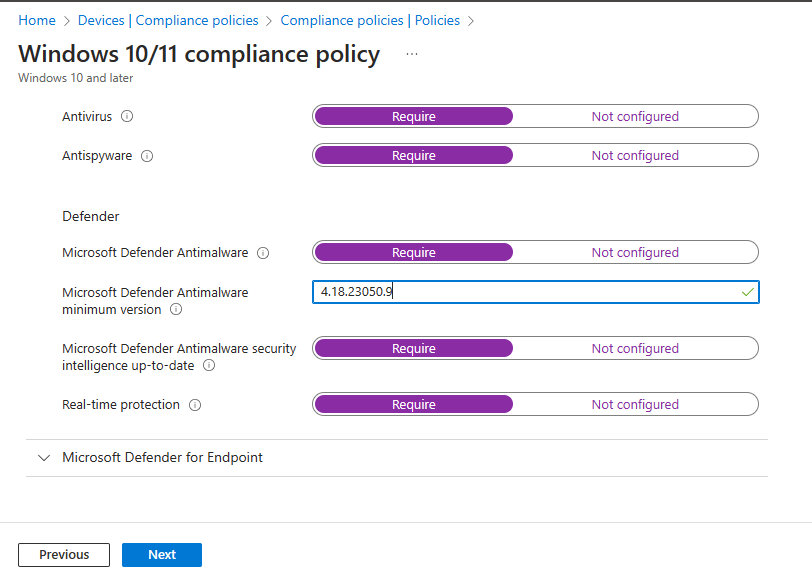
“System Security” is configured as per the below screenshots.

The next section asks for a minimum Antimalware Client version. We can check the version running on our device by searching for “windows security” in the Windows search bar, then selecting “About” from the main screen.
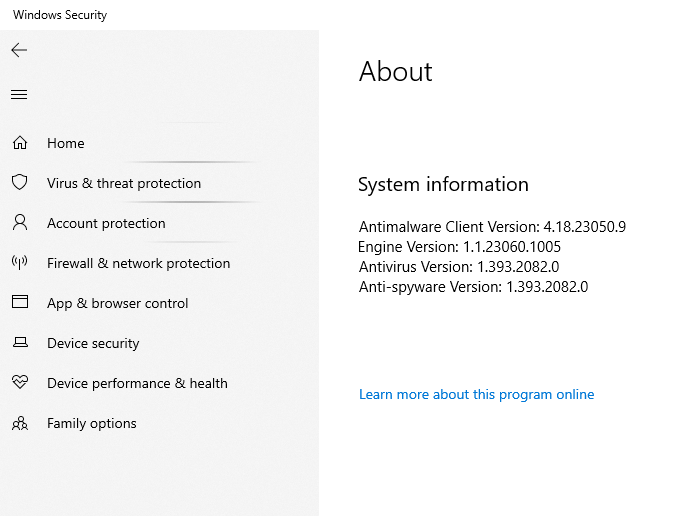
Below we can see the version entered in the relevant section.
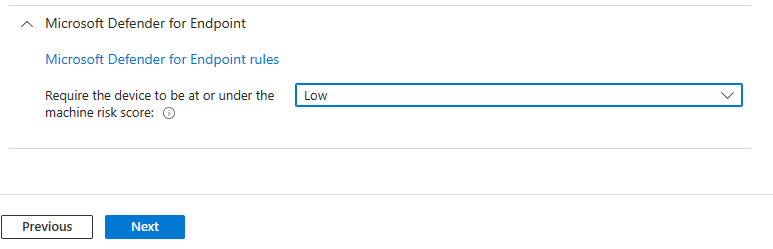
For MDE we want almost Zero tollerance so have set this setting to low, which means that devices rated as “Low” risk will still be marked as non-compliant. This is not suitable for all environments, however for our usecase this is acceptable.
Again here in “Actions for noncompliance” we are going to be quite strict by marking devices as noncompliant after just one day, but we will not be enforcing any conditional access policies as part of this compliance policy. If you are enforcing conditional access then you may want to allow more tollerance. You can also use email Templates to notify users if their devices are “noncompliant”.
(To create a new notification email template, visit “Notification” in the “Manage” section of the Set Device Compliance workload – We will show the following in a future blog).

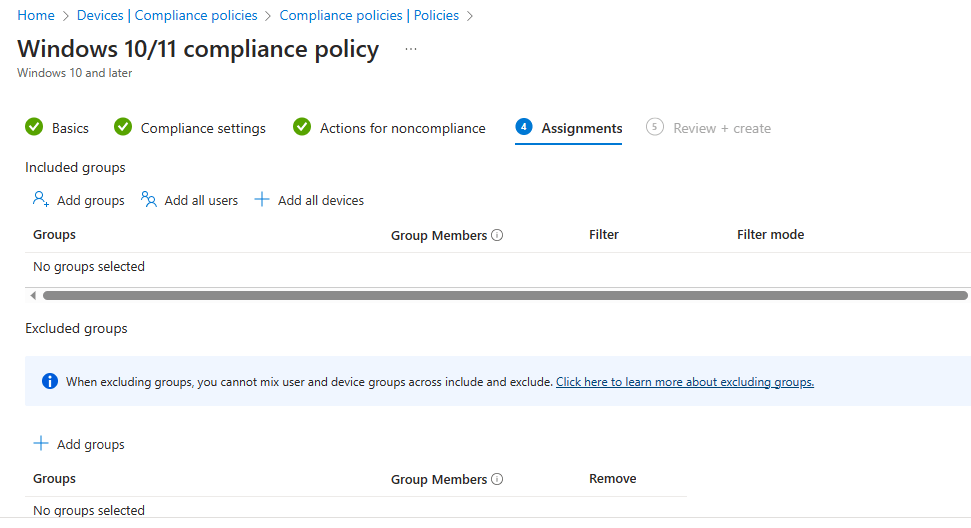
“Scope” we don’t make any changes, then in “Assignments” we are going to select the Remote Users Group we created in a previous guide. You can obviously assign this to a custom group you have created, however best practice is to assign compliance policies to users rather than devices as it can cause endpoint duplications within the policy monitoring tab. ITProMentor has a great blog which goes into this in a little more detail.
“Review and Create”

The reason we have set such a srict compliance policy without any enforcement actions is because we are going to go through a period of baselining to assess our environment before we deploy this fully into the production environment.
As previously mentioned Conditional Access can be used to enforce these policies and block access to organisational resources. Conditional access is a whole other guide which we will cover in the future. If you can’t wait for the blog and want to review the documentation, there are a few links below to get you started. The next blog will cover the Antivirus and endpoint protection policies.
Device Based Conditional Access https://learn.microsoft.com/en-us/mem/intune/protect/conditional-access-intune-common-ways-use#device-based-conditional-access
Common ways to use Conditional Access with intune https://learn.microsoft.com/en-us/mem/intune/protect/conditional-access-intune-common-ways-use#device-based-conditional-access
 @2codemonte