
This is a quick guide for configuring Edge SmartScreen, which is set as a separate policy as generally we are going to need different configurations for different user groups, so it’s a good idea to have your Edge policy separate from other endpoint policies.
IMPORTANT NOTE.
Don’t deploy anything without testing first as you cannot easily roll back restrictive policies applied via Intune. For example, you apply a baseline to a device, but it causes issues so you need to roll back. You can’t simply remove that user or device from the policy to revert all the changes as described in these articles, cant-change-security-policies-for-enrolled-devices and i-changed-a-device-restriction-profile-but-the-changes-havent-taken-effect so make sure all profiles are tested individually to identify any potential issues before they are deployed to a live environment. I would recommend doing a test roll back to make sure you have a well tested back out plan.
To create Edge SmartScreen configuration profiles we go to https://endpoint.microsoft.com > Home > Devices > Windows > Configuration Profiles > “Create Profile”.

Our profile will be for Windows 10 and later and the Profile type will be “Settings Catalogue” rather than a template so we have all the settings available to us, then hit “Create”.
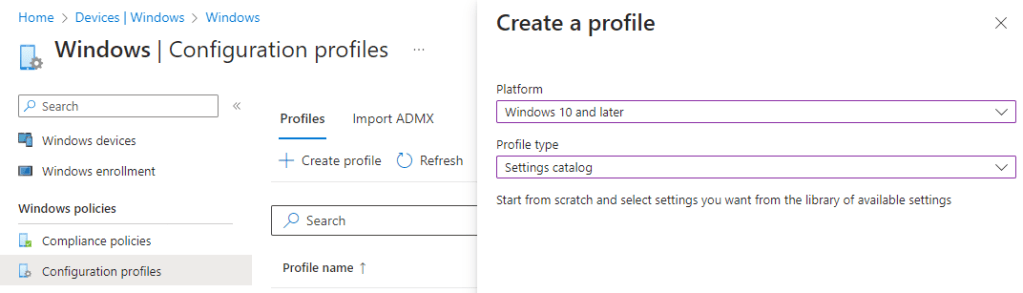
Give it a name and description then click the “add settings link”.
From the settings picker we search for “smartscreen”, then select “Microsoft Edge\Smartscreen settings”.

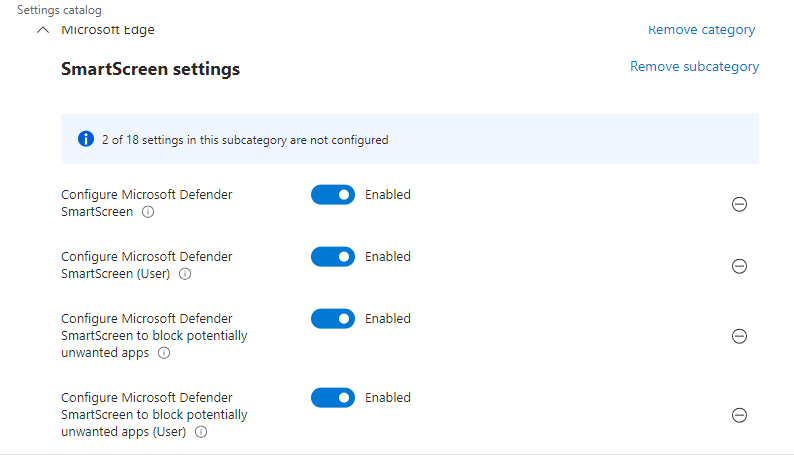
We will tick all the boxes as we want to be able to configure all these controls. (NOTE: We are ticking the two “Configure the list of Domains………………………..” options even though we won’t be adding domains at this point, however in the future we will definitely need to use these settings and their functionality).

Now we have enabled the settings we have to actually configure the ones we want. We’re going to enable most of them as we want strong controls on the endpoints within this group, however we won’t enable any that require a manual list of Domains at this point. This is something we will configure if required due to operational issues or concerns. Also note that some users such as service desk may need to ability to bypass smartscreen warnings as part of normal BAU troubleshooting, so ensure you consider the impact within your own environment.


We then select next, we leave the scope tags as default and then under “Assignments” we again add our Remote Users Group, hit next then review and create.
That’s it.
 @2codemonte