
In the previous eight guides we have setup Intune and Autopilot from scratch, and this guide is where we test the onboarding process by joining a device to AAD and then logging in with a user account which is a member of our Remote Users Group. (You should use a user account based on your own configuration, for example if you created a different group or used the built-in “All Users” group).
We can login to the device with an existing admin account, and use an admin account to join the device to AAD, or we can give the device to the user and provide a guide for the onboarding process. For this guide we are using a user account which is a member of our Remote Users group which we have used throughout all the guides.
First we join the device to Azure AD.
Use Windows search (The Windows Search Bar) and enter the term “Join this device to Azure Active Directory”, then select the result which will take you to the below screen.
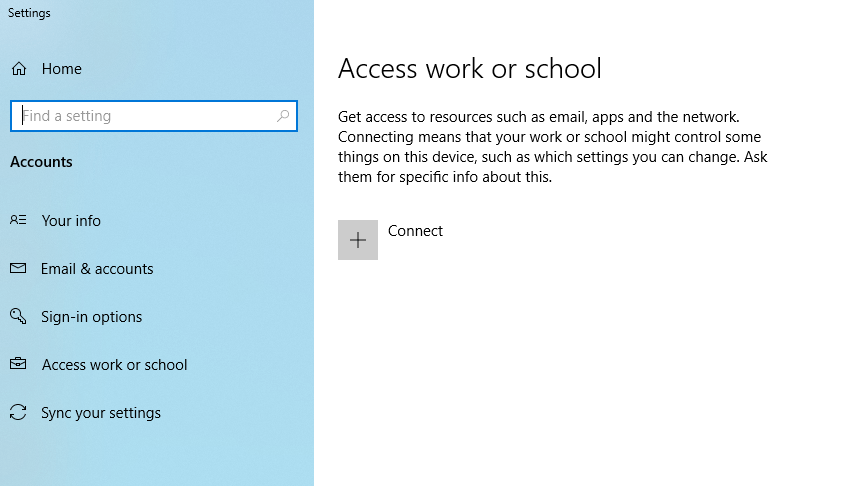
Click “Connect” to add your work account, then select the link at the bottom of the screen “Join this device to Azure Active Directory”. We enter our email address and login using our password and 2FA when prompted. (Remember, we set for 2FA to be required for all devices before they can join AAD).
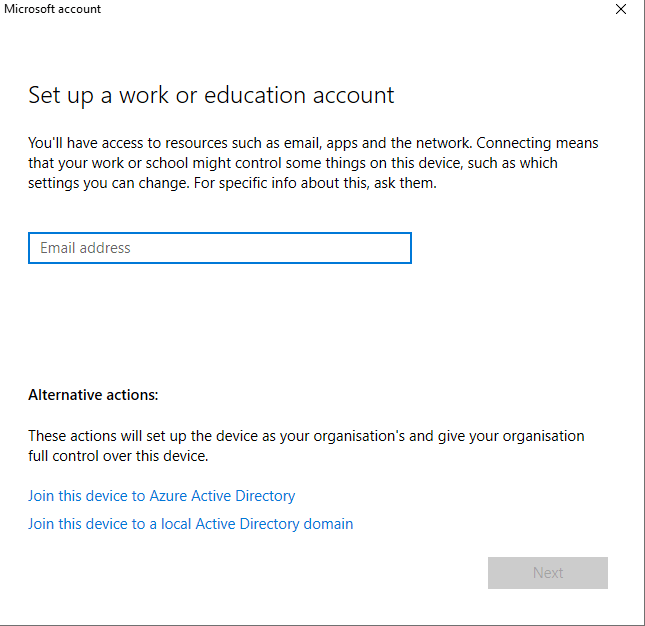
We accept the terms and conditions we set earlier.

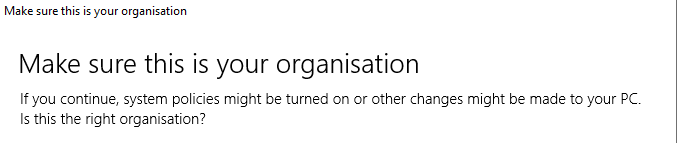
We are prompted to confirm this is our org and that we understand changes will be made to our laptop or device.
Then we get the loading screen 🙂

We get some pop ups relating to policies, and registering the device with our organisation, they we should get the confirmation screen.

Select “Done” and we get a visual confirmation that our device is joined to our AAD, as shown below.

Now we logout of the device, restart and login as our user who is a member of the Remote Users group. (The user who is going to be using the device).
It can take up to 24 hours for the device to appear in both MDE and Intune so don’t worry if you don’t see it appear immediately.
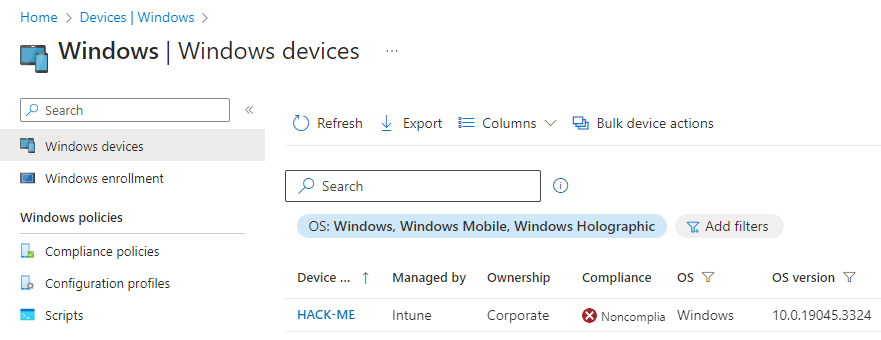
We want to check for the device in intune via https://endpoint.microsoft.com > “Devices” > “Windows Devices”. We can see our test device is onboarded to Intune. (Our device shows as “Noncompliant”, and we will look at resolving compliance issues in later guides).
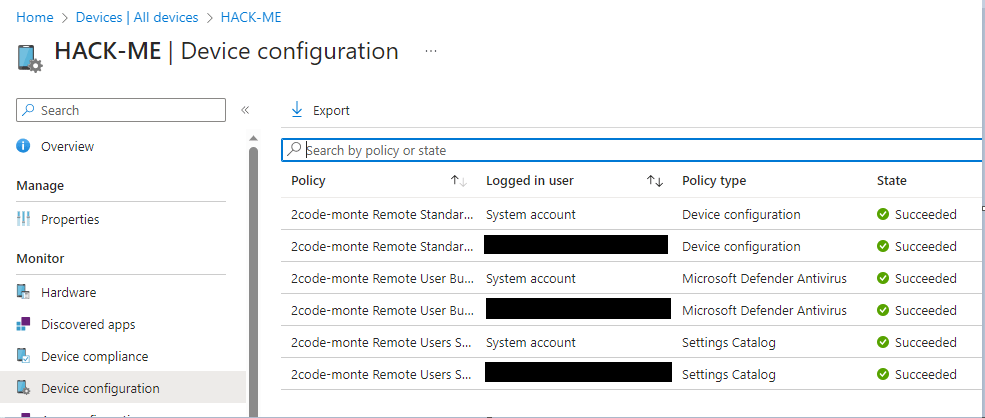
Click on the device to open the device page and, then select “Configuration Profiles”. From here we can check if our configurations have been successfully applied. Here we have green ticks across the board. Great news!
Then we want to confirm the MDE sensor is connected correctly, by going to “Endpoint Security” > “Microsoft Defender for Endpoint” and confirming our device has the Endpoint Sensor.

Then we head over to MDE at https://security.microsoft.com > and under “Assets” > we select “Devices”. You should see your device here which confirms it has onboarded to MDE.
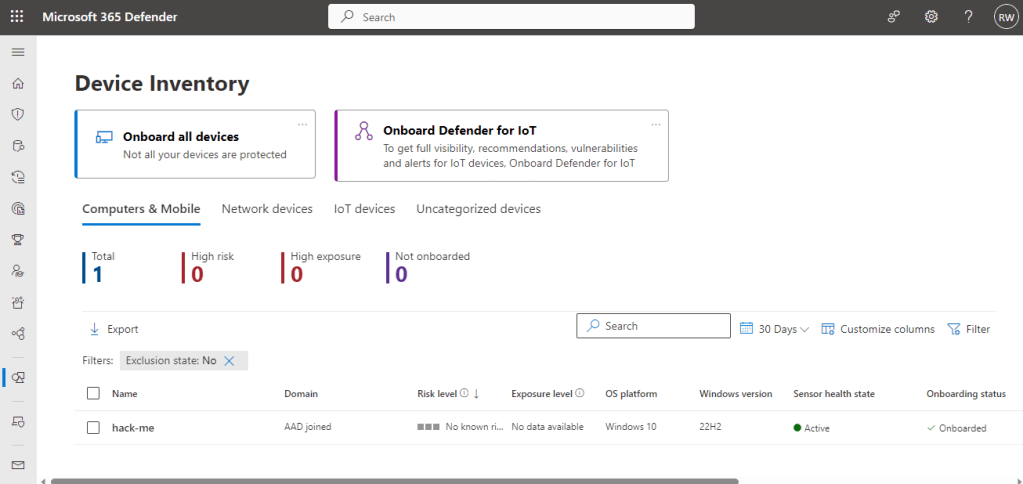
As previously mentioned it can take a while for MDE to pull all the data for the endpoint so if you initially see “No known risks” and “No data available” don’t worry, and check again in a few hours or the next day and it should start populating.
That’s it for this part of the guide. Next we will move onto device hardening, configuration and compliance troubleshooting.
 @2codemonte