

By now you should be aware that as of September 30, 2025, authentication methods can’t be managed in these legacy MFA and SSPR policies. You will need to use the new unified Authentication methods policy.
“2025” I hear you shout! “we’ve got ages”. Well, it can seem that way however authentication methods, and conditional access policies can have unexpected impacts. We need to carefully design our deployment and policies and thoroughly test before they are rolled out to production environments. We could, potentially lock all users (Including Global Admins) out of our tenant bringing the entire org to a standstill, and at the mercy of Microsoft support, and that’s if they can even get you back in!
We need to do this in a careful, considered way, double and triple checking everything.
First off we will want to consider Conditional Access (CA) policies which we covered in detail previously over three guides, the first of which you will find here. We also cover creating a log analytics workspace that can be used to assist with trouble shooting, and discovering potential gaps in MFA coverage, and legacy authentication use.
Review Legacy MFA.
Let’s head over to https://portal.azure.com/ > Security > Multifactor Authentication
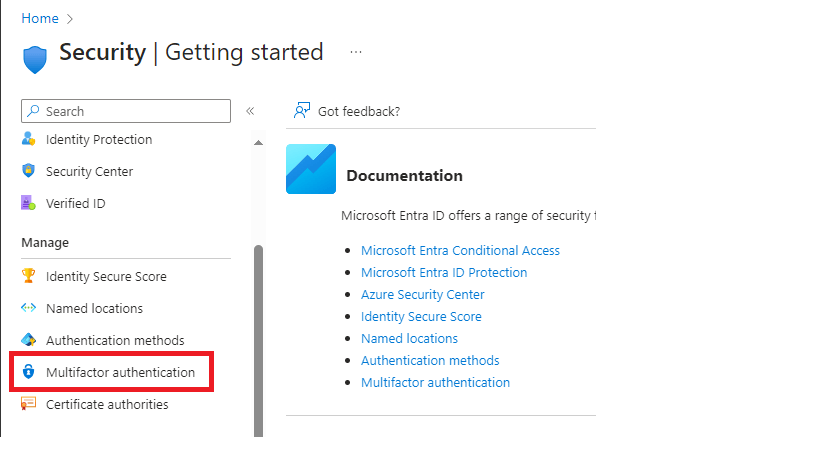
We then select the below highlighted option.
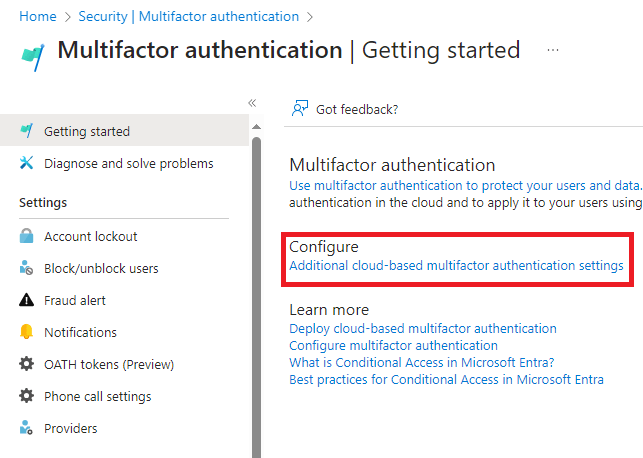
That will take us to the configuration page for legacy MFA settings. Let’s review what we have.

We especially need to take note of the methods ticked below, so we can compare them with other settings.

Microsoft provide the below table for identifying the new setting which corresponds to the legacy setting.
| Multifactor authentication policy | Authentication method policy |
|---|---|
| Call to phone | Voice calls |
| Text message to phone | SMS |
| Notification through mobile app | Microsoft Authenticator |
| Verification code from mobile app or hardware token | Third party software OATH tokens Hardware OATH tokens Microsoft Authenticator |
Review Legacy Self Service Password Reset (SSPR).
Back in the Azure portal we search for “Password “Reset” then select the relevant option.

First we should note which users are enabled for SSPR, which in our case is All users which corresponds to the “All Users” Security Group.

Then as with legacy MFA we need to note the available methods, by selecting “Authentication methods”.

Again Microsoft provides a handy table for mapping new to old configurations.
| SSPR authentication methods | Authentication method policy |
|---|---|
| Mobile app notification | Microsoft Authenticator |
| Mobile app code | Microsoft Authenticator Software OATH tokens |
| Email OTP | |
| Mobile phone | Voice calls SMS |
| Office phone | Voice calls |
| Security questions | Not yet available; copy questions for later use |
New Authentication Methods.
We now head over to the new policy and note what is enabled by searching for “Security” in the azure portal home page.

Select “Authentication methods”.

The displayed page will show the list of methods and if any are enabled as highlighted below.

We can see we have Microsoft Authenticator and Email OTP enabled.
Compare our findings.
Let’s look at what we have configured between these three policies.
Legacy MFA policy
- Text message to phone.
- Notification through mobile app
- Verification code from mobile app or hardware token.
Legacy SSPR Policy
- Mobile app code
New Authentication methods policy
- Microsoft Authenticator.
- Email OTP.
Migration for us should therefore not be too difficult, if we do not wish to enable any new authentication methods in the new policy we need to identify all users who are using text message to phone, and/or verification via hardware token.
If we are happy to continue to use these methods we need to enable them within our new policy. As SMS MFA is no longer considered secure we do not wish to enable this, and we also know that we do not have any staff using hardware tokens so do not need to concern ourselves with this.
NOTE: For a more detailed description of the options available and some other considerations not raised here you should review this article from Microsoft.
The result of our investigation is that we will not enable SMS MFA and instead force users to implement app based MFA using the Microsoft Authenticator app. Once we are happy with the configuration of the new Authentication Methods policy we want to move to the next stage which is to enable the new policy while still allowing legacy policies to apply which facilitates a side-by-side migration.
Staying within the Authentications Methods page from the previous step we select “Manage Migration”.

Then select the option show below, and save your changes.

After a period of testing, and assisting users to move away from the MFA methods we wish to no longer use, we can consider disabling the legacy policies and fully migrate to the new Authentications Policy.
If we try and complete the migration by selecting “Migration Complete” without making the required changes we will receive the following message.
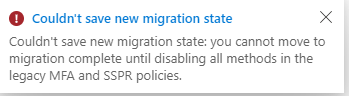
We need to go into our legacy policies and disable all enabled methods before we can complete our migration.
We head back to https://portal.azure.com/ > Security > Multifactor Authentication > Configure
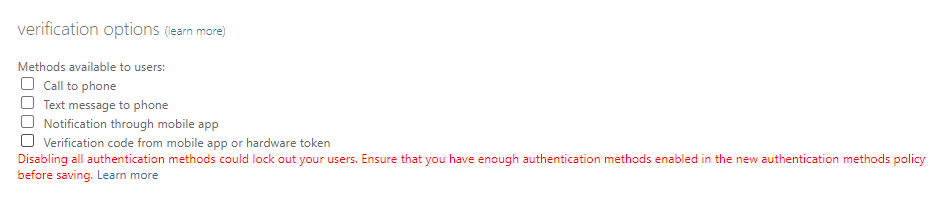
We disable all the options, read the warning, we could LOCK OURSELVES OF OUR TENANT, so we must be sure we have a break the glass account just in case. We covered break the glass accounts in our Securing Azure – Identity and Access series.
Next we do the same in the SSPR policy by searching for “Password “Reset” then select the relevant option.
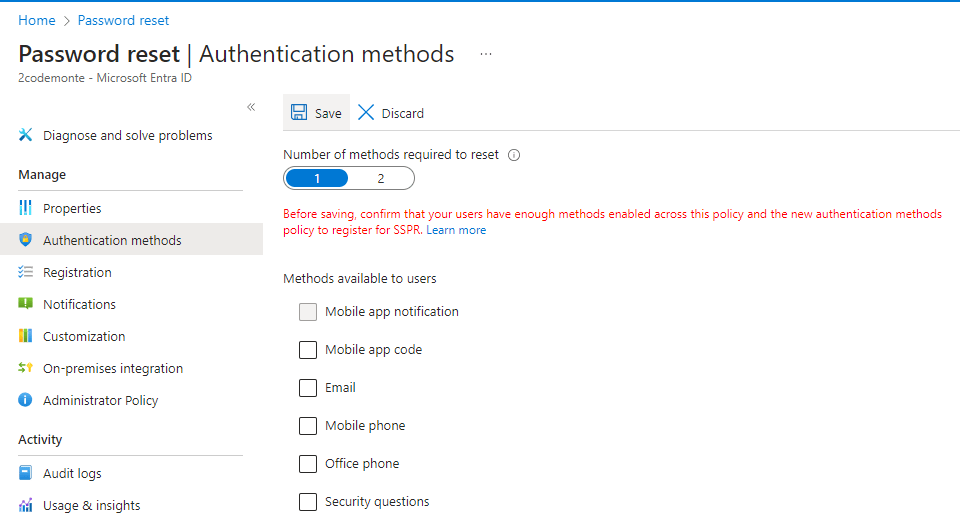
We select “Authentication Methods” and untick all options, again note the warning, we could LOCK OURSELVES OF OUR TENANT, and save our changes.
Now the final step, we go back to our new policy page by searching for “Security” in the azure portal home page, then selecting the relevant option.
Select “Authentication methods”.
Then “Manage Migration”
And complete migration.


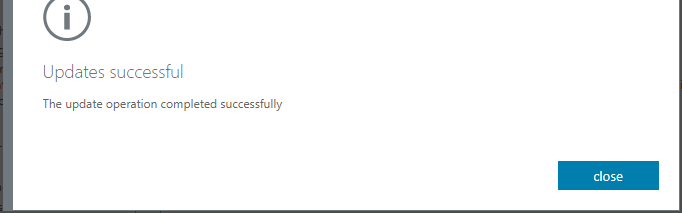
With that we get our successful message, and we are now using the new Authentication Methods policy only.
 @2codemonte