
Introduction
Mobile Application Management Policies can used to secure data on both managed and unmanaged devices.
If you have Intune, and you have a problem with BYOD in your organisation, then this is the guide for you. We will be configuring a policy for iOS devices, but the steps for the Android devices are exactly the same.
NOTE: Although we are referring to “devices” during this guide, we should note that App Protection policies in Intune are only supported for Groups which contain users not devices. App Protection policies target users, not devices which is why they are perfect for BYOD, as even if the device is not known, or enrolled, and as long as the user is in the targeted group, the policies will apply to them.
Our aim today is to block our users being able to use native mail clients (for example the apple mail app), to enforce an app-level PIN code so users have to enter a code before getting access to corporate data, and to prevent corporate data being removed from apps to non-managed apps, or local device storage. Users will not have access to the clipboard meaning they will not be able to copy and paste data from corporate managed apps.
NOTE: We can create one Conditional Access policy for both iOS and Android, however when we progress to the App Protection Policies we will need multiple policies, one for each OS type.
Configuring Conditional Access
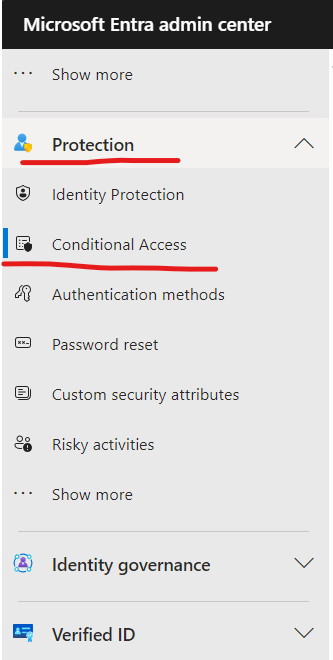
First we start in the https://entra.microsoft.com/ portal and create our Conditional Access policies by going to “Protection” > “Conditional Access”.
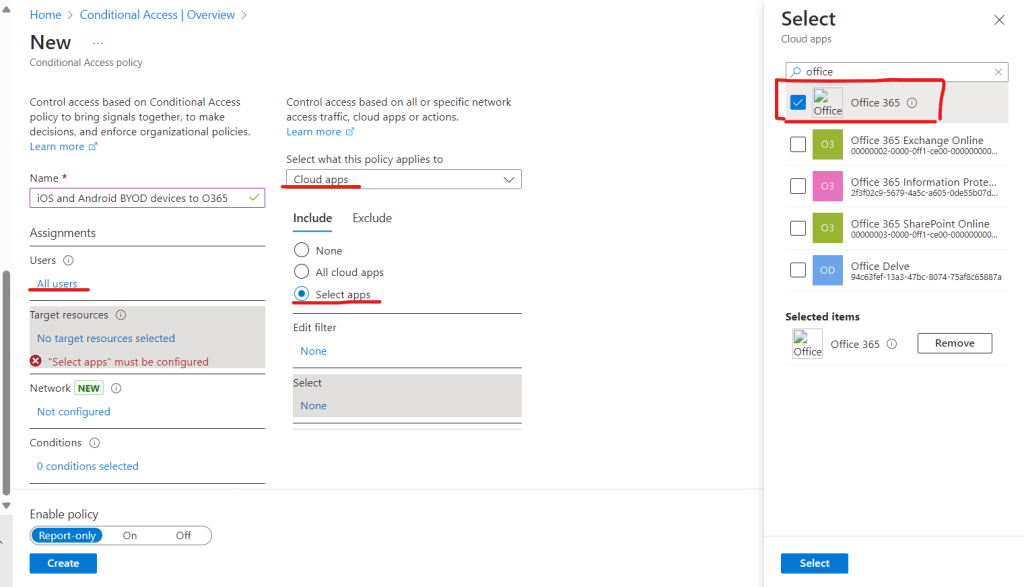
Select “Create new policy”, target “All Users”, (unless this is not appropriate for your tenant) select “Cloudapps”, and then “select apps” radio button to chose “O365” then select as shown below.
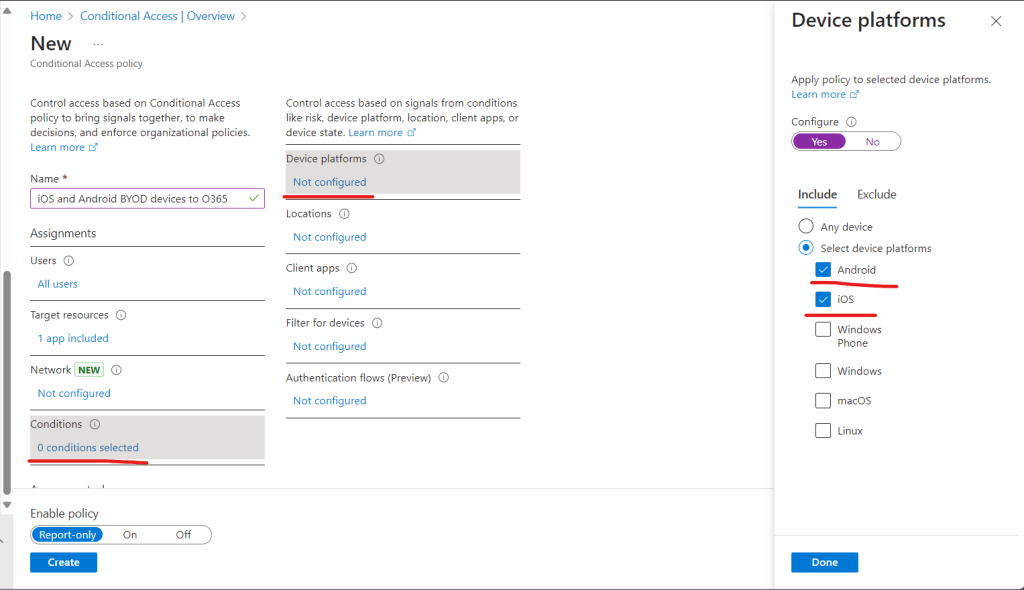
Next we configure “Conditions” > “Device platforms” > “Select device platforms” > and chose Android and iOS as shown below.
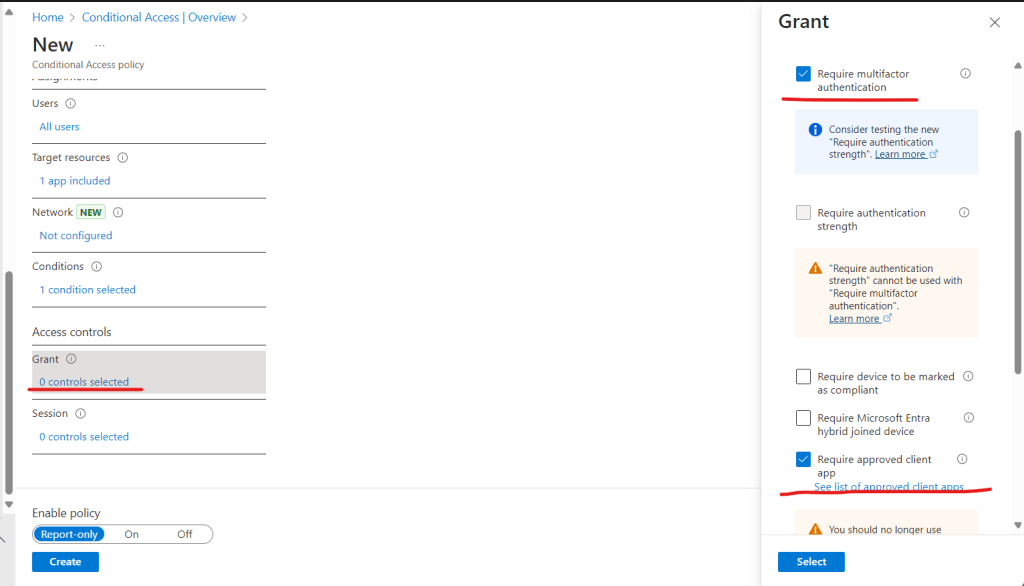
Next we configure “Grant” > and tick “Require multifactor authentication” and “Require approved apps” as below.
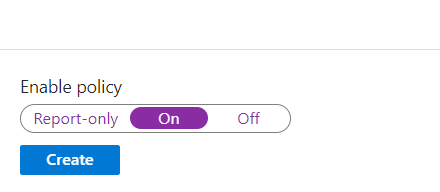
We have the ability to leave the policy in a “Report-only” state so we can monitor any impact from the policy before fully enabling it. We are going to go ahead and enable this policy, however we obviously recommend sufficient testing is carried out before enabling ANY conditional access policy.
NOTE. ALWAYS complete sufficient testing before enabling ANY conditional access policy. You can lock yourself out of your tenant, including admins if you configure them incorrectly.
That’s our Conditional Access policy completed, so let’s move to the App-Protection policy.
Configuring App Protection Policies
As previously mentioned app protection policies are OS specific so we will need to make a policy for all device types to cover us across all platforms. In this guide we will cover iOS only, but the steps for Android are almost identical.
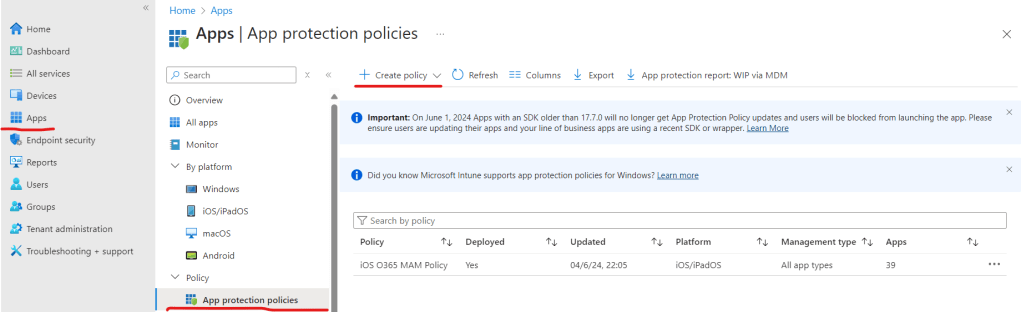
We need to head over to the Intune portal at https://intune.microsoft.com/ > Apps > App protection policies > Create policy.
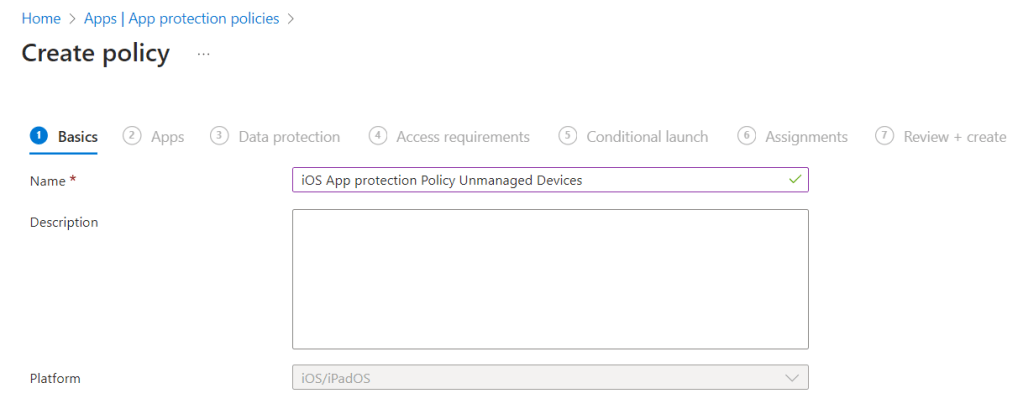
Give it a name and a description.
We want to target all apps, but you can just choose O365 apps if you wish.

Next we configure our data loss prevention controls as shown below. We are blocking corporate data from being backed up to iTunes and iCloud, blocking data from being copied from managed apps to either unmanaged native apps or local device storage. We are allowing them to save data from unmanaged devices to OneDrive or SharePoint (“2 selected” dropdown).
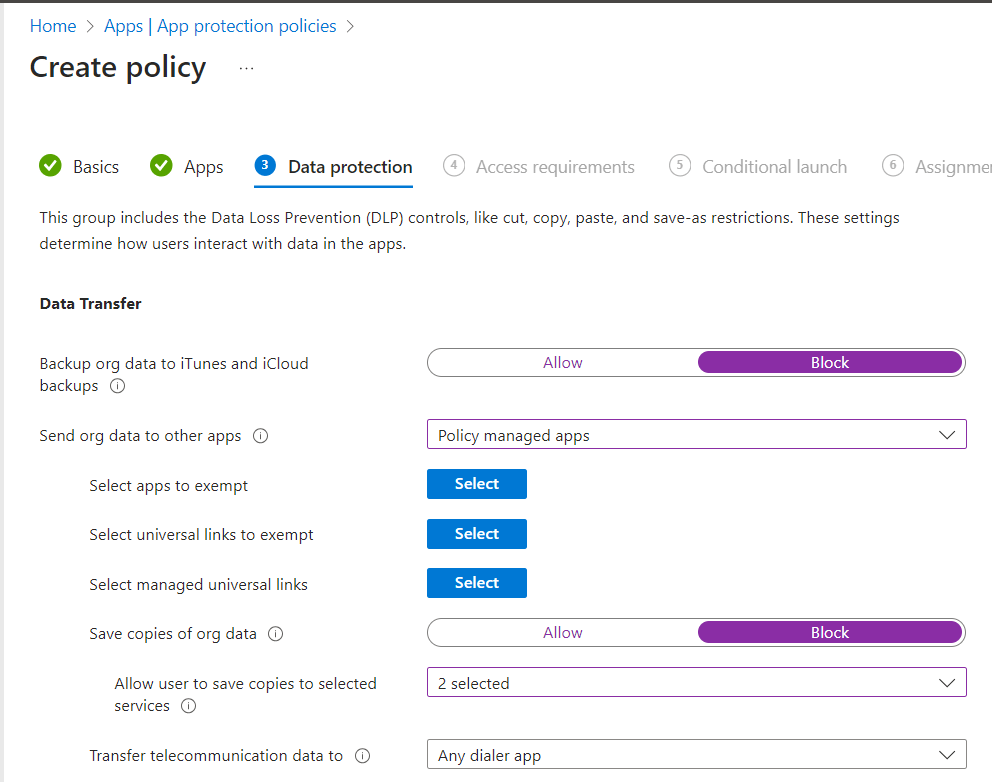
We are going to allow one way transfer of data from unmanaged apps to managed apps, and require all corporate data to be encrypted locally.
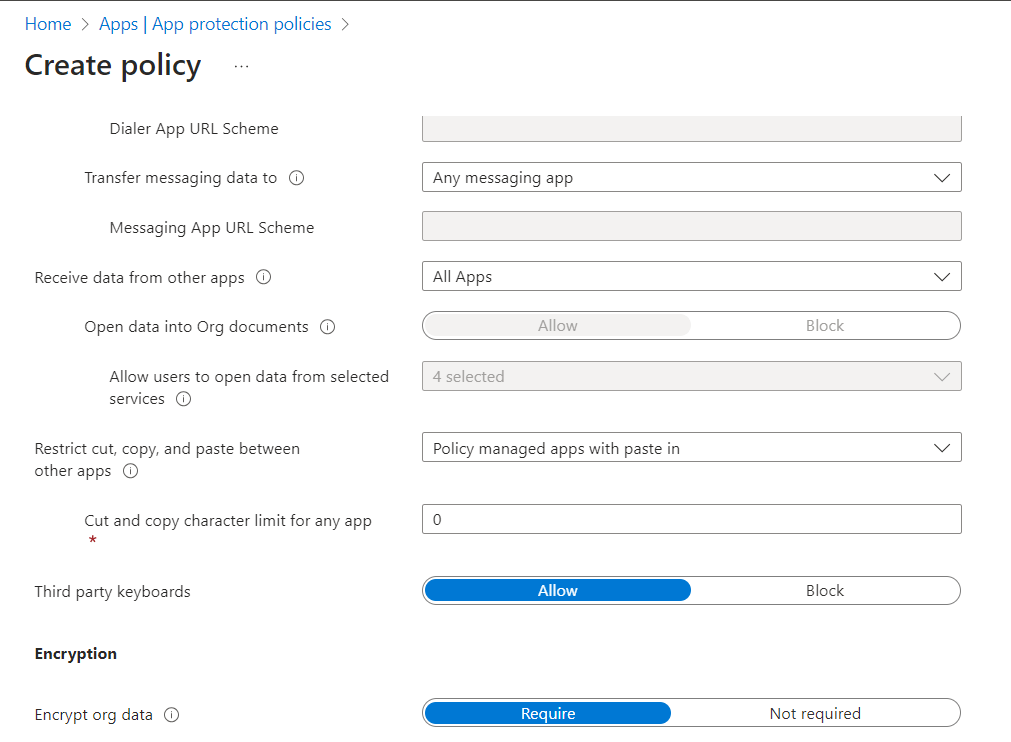
We will also block printing of corporate data, and prevent the syncing of data (such as contacts) to native apps.
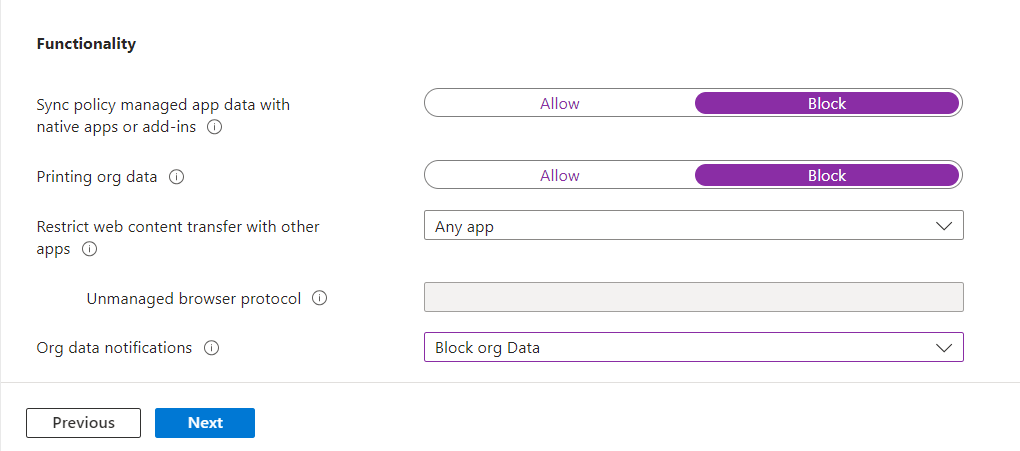
Here we set the requirement for a PIN to access apps, block simple PINs such as 1111, and set the minimum length.
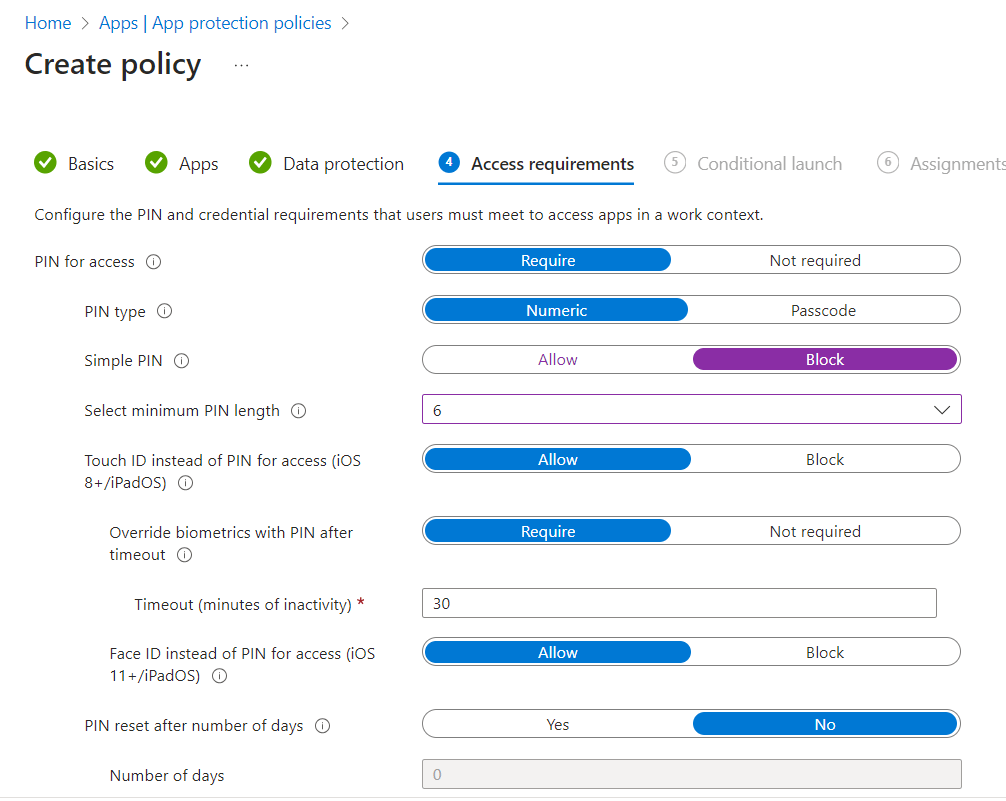
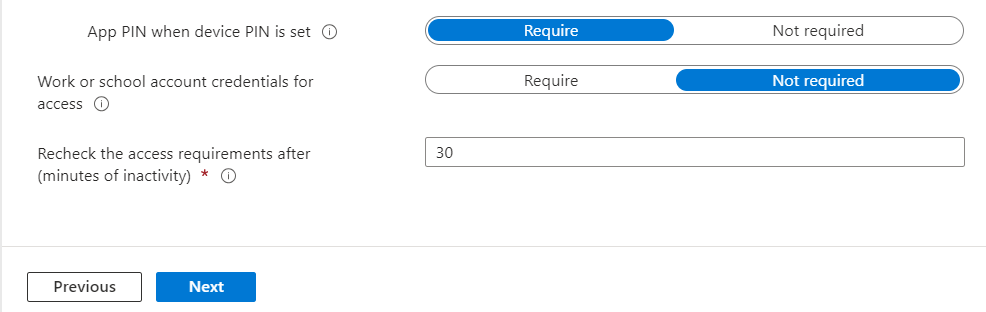
We will remove the requirement to enter their full username and password each time they open the app as we have enforced a PIN.
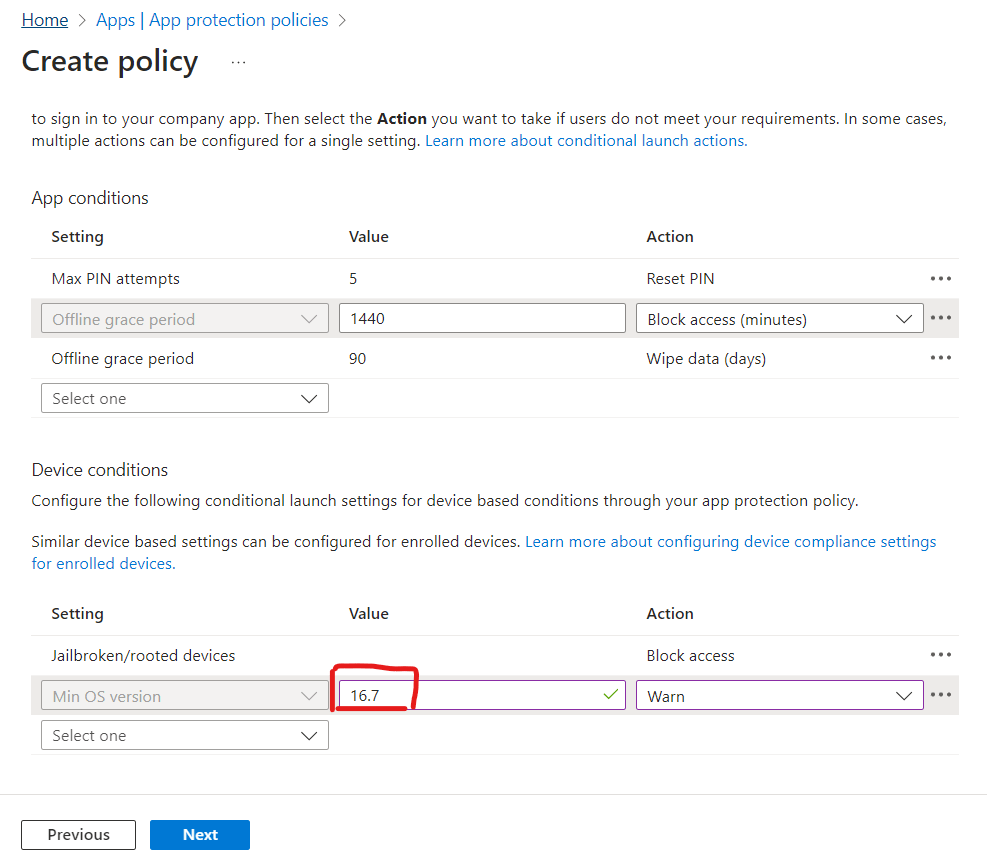
Next we set some further app conditions such as auto wipe if the device has been offline for an extended period, block access from rooted or jailbroken devices and set the minimum allowed OS version. (This will need to be maintained over time to ensure it is always an appropriate version).
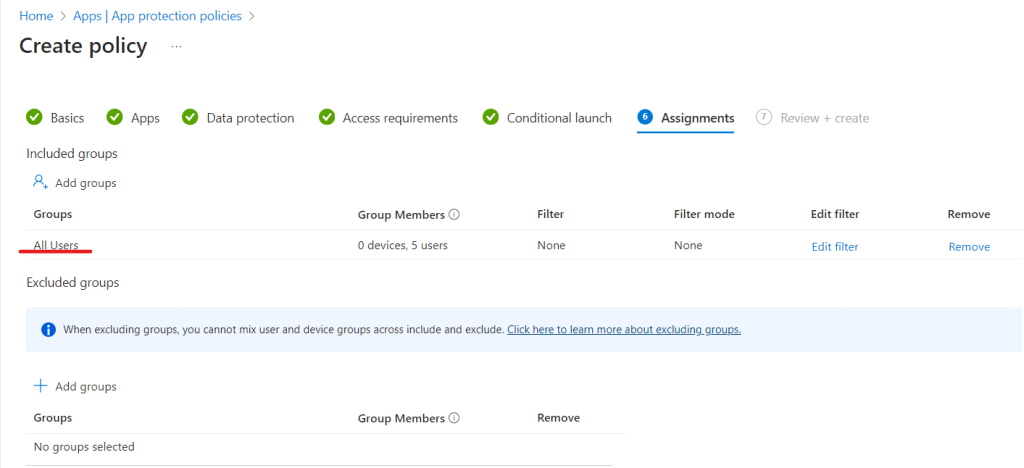
We are going to apply this to the “All users” group, this ensures that any user who connects to corporate data with these device types will fall under the policy. This won’t affect devices which are onboarded to Intune (corporate devices).
We review our settings and create the policy.

That’s it. We have created our app protection policy for iOS, now we need to go back and repeat this this process for Android. We will cover Windows BYOD devices in a future guide, as this requires us to create some additional conditional access policies, and Windows specific app protection policies.
 @2codemonte