
In our previous post we looked at how to create app based policies which can be used on mobile devices which are not enrolled in Intune as corporate devices. We looked at how we can control and protect corporate data within Microsoft apps by blocking copy and paste, access to local storage and non-approved apps even when a personal device is being used.
This guide will show how we can delete corporate data within mobile apps without affecting any personal data on personal devices. This is another piece of the puzzle when looking to create BYOD policies which allow users to use personal devices for work purposes while minimising the risk of data loss. If you didn’t read the earlier guide we encourage you to go and read it as it explains how to setup the app protection policies for this configuration.
Why would we want to delete data on a personal device? Perhaps the user left the organisation and although the password has been changed and the account disabled, there is still data within the apps which we want to purge. Or perhaps a user has lost their personal device, and we want to ensure corporate data can not be compromised if it is later discovered that the device was in fact stolen.
App level deletion also provides the users with assurance around their personal data which resides on their phones, and that security operations are not going to delete all their important family photos or personal emails if the device is impacted by a cyber incident and the business wants to minimise potential data exposure. Rather than having to initiate a full device wipe, the security team can just delete corporate data. the goes as far as if the user has their personal account synced within the Outlook mobile app alongside their work account. The wipe will remove only the work account and leave the personal account untouched. Pretty cool, right?
Let’s dig into how we carry out selective wipe using Intune.
Let’s head over to the Microsoft endpoint portal https://intune.microsoft.com/ and navigate to “Apps” > “App selective wipe”.
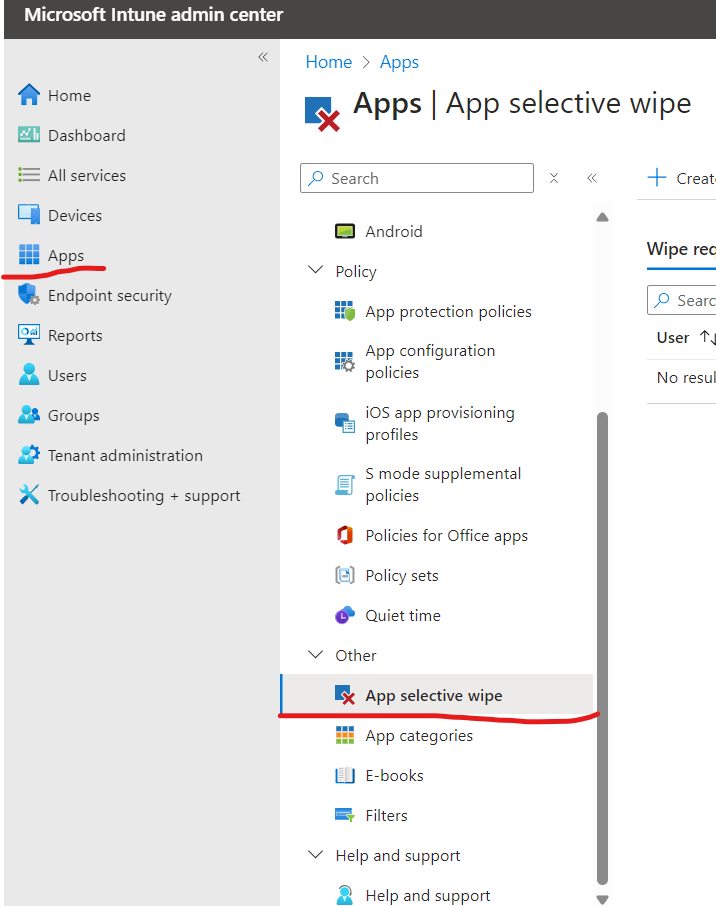
From this menu we can select to either perform a device based wipe or a user based wipe. This isn’t as it sounds. A device based wipe will not wipe the device, it simply means the wipe is restricted to only the devices specified after a user is selected in the remote wipe process, whereas the user based wipe will wipe all data from all managed apps on all devices used by the specified user that are covered by the app-based policies.
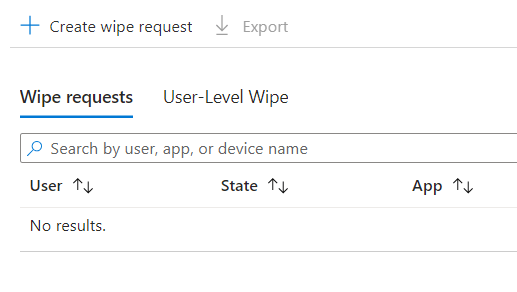
We will show the device based wipe, which requires us to select the “Wipe requests” option and then “Create wipe request”.

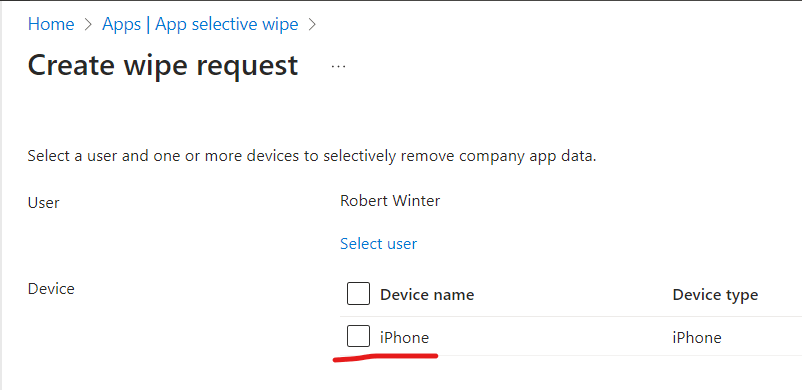
Once we have selected the relevant user, we select the device we wish to wipe (again this only wipes corporate data stored within controlled apps), then hit “Create”, and that’s it.
You will see the wipe request queued as pending until completed, at which point it will show with a green tick.

The next time a managed app is opened the wipe should occur, but the wipe can take up to 30 minutes after the request was made, so in the worse case scenario the data will be wiped the first time the apps are opened after 30 minutes has passed.
Come back for more simple and useful guides, or look at our previous posts which cover Intune, Azure, Sentinel, Security Operations and Cyber Security in general.
 @2codemonte