
In Intune guide number 15 we covered configuring ASR Rules with an Intune policy to harden our endpoints and reduce their attack surface.
In this guide we are going to show how granular these controls are by creating an exclusion for a specific executable, for a specific ASR Rule, for two specific devices.
In our scenario we have a user who needs to use an encrypted USB device on either their desktop or laptop Windows devices. The USB runs a proprietary application which prompts for a password which is then used by the application to decrypt to contents of the USB.
Intune allows us to add the executable to an exclusion list for the ASR Rule which is blocking this file from executing.
NOTE: In this scenario we are not looking into an approval process, or risk assessment on whether this application should be allowed, we are showing how to allow a blocked application and add an exclusion.
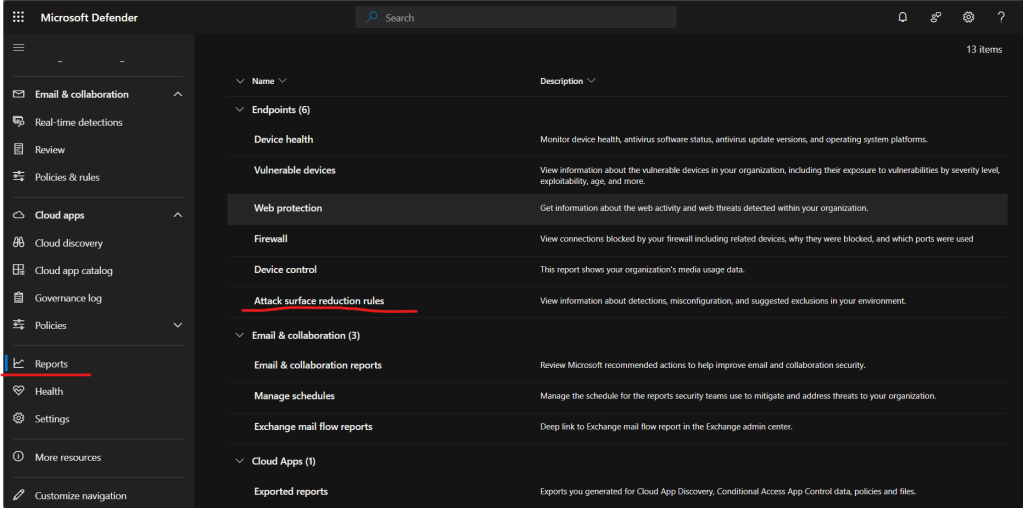
Let’s head over to the MDE portal at https://security.microsoft.com/ and look for the blocked application.
Within the portal we go to “Reports” > “Attack Surface Reduction Rules”.
Clear all the filters and view the report. Here we can see the blocked action taken against DualLock.exe.
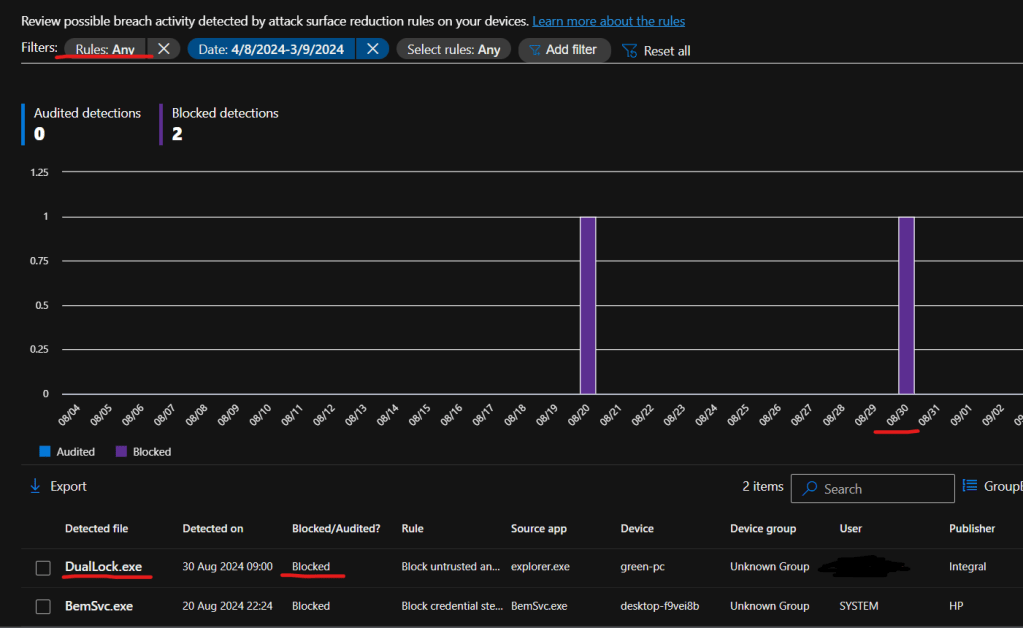
We can also see the rule which was triggered, this will help us create the specific exclusion for the correct rule.

If we click on this entry the side bar opens and from here we can investigate further using the “Open file page” link. If we click “Add exclusion” we will be directed to the Intune portal to add the file to the relevant policy.

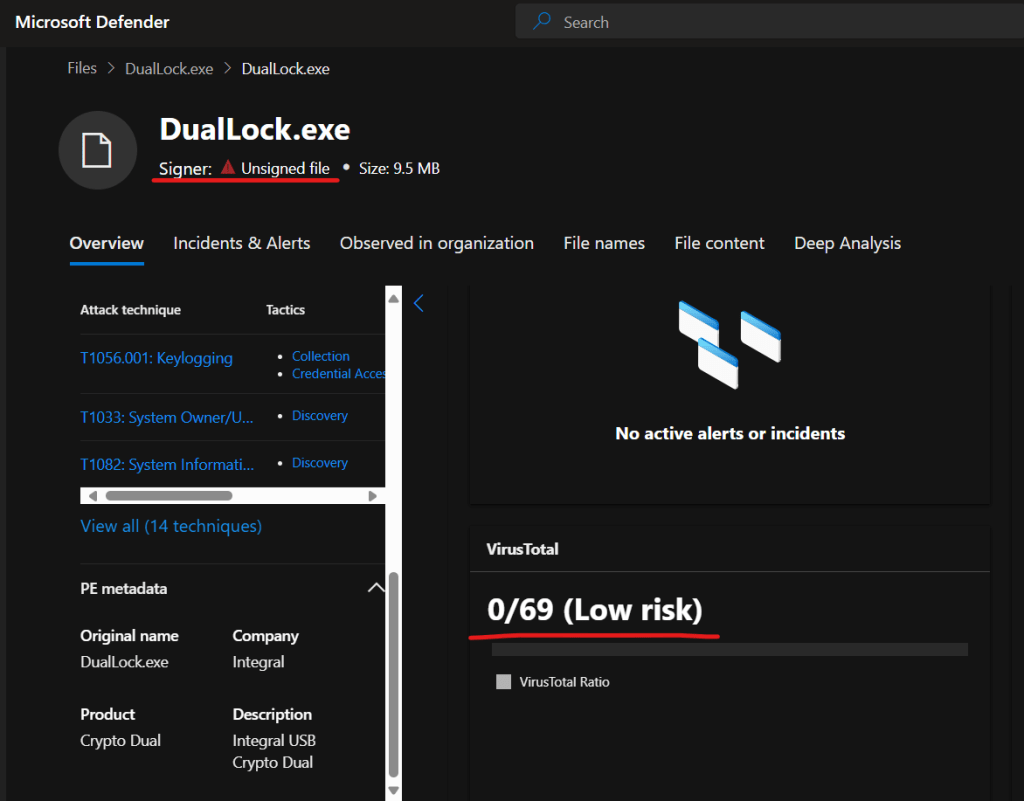
The below gives an idea of the type of information to be found in the file page including a Virus Total scan result and that the file is unsigned.
To get the path for the application we head back to the main report page at “Reports” > “Attack surface reduction rules” and select the “Add exclusions” tab, then select the relevant file.
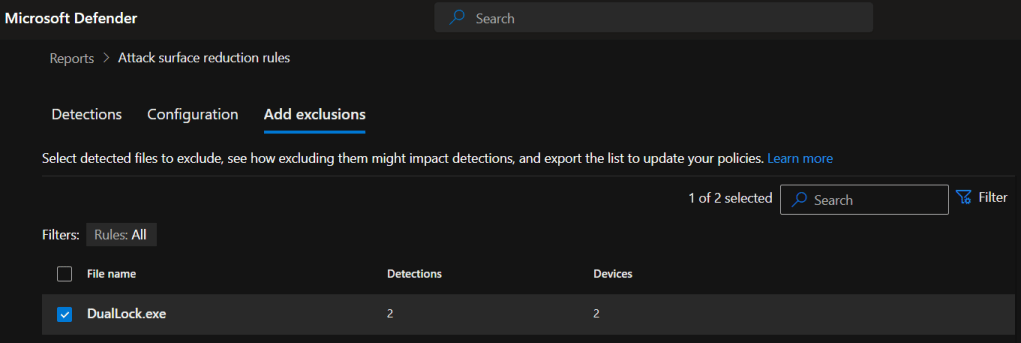
Scroll down and at the bottom right you should see the option to “Get selected exclusion paths”.
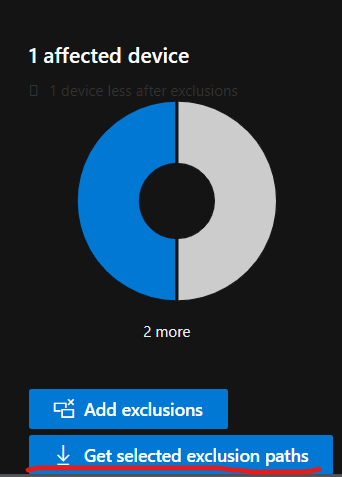
This will download a csv file which contains the application paths we need for our rule.
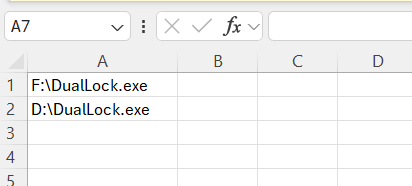
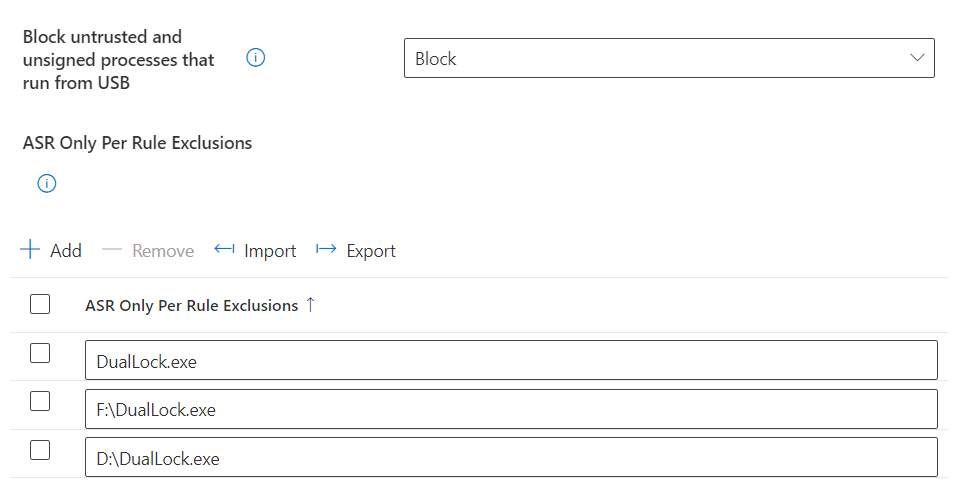
Once we are happy to add the file to an exclusion list, head over to the Intune portal and add the exclusion to the rule “Block untrusted and unsigned processes that run from USB”.
We add the executable name in the relevant box (copied from the file page), then hit next.
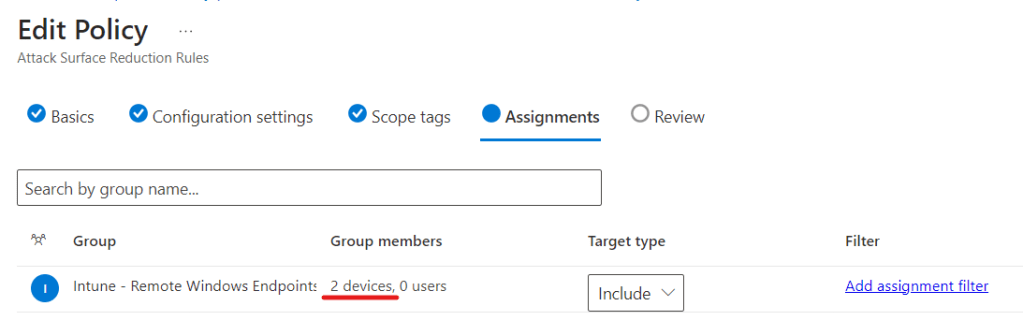
We don’t want this to apply to all users or devices as only one specific user requires it, so create a new group and only allow the file to run on the specific devices where it is required, which in our case is two.
That’s it, after a short period and the devices have reported in to Intune, our user is able to use their USB. See you next time.
 @2codemonte