
If you haven’t been following this series from the start, we have gone from setting up Intune from scratch which included device onboarding, autopilot, MDE, LAPs and compliance and configuration policies. This is part 15 in a step by step approach to securing endpoints and devices, with this guide covering Attack Surface Reduction (ASR) Rules.
What are ASR Rules?
ASR Rules are a set of rules predefined by Microsoft (based on countless signals from millions of devices daily) which aim to prevent compromise of devices and minimise any impact of a successful compromise. These rules are not based on traditional IoC’s such as hashes or URLs, instead they are focused on known techniques such as code injection and credential theft. This aims to prevent previously unseen attacks that use previously seen techniques. For example many attacks leverage weaknesses in Microsoft Office applications, whereas standard anti virus techniques would block known malicious files based on hashes that had been seen previously, ASR Rules allow us to block Office applications from creating child processes, block Win32 API calls from macros, and block potentially obfuscated scripts. Applying these three rules alone can dramatically reduce our endpoints and servers attack surface.
NOTE: There are a few caveats, for example some of the rules do not honour MDE AV exclusions and some rules are not supported on all OS versions. The reference page is here.
List of ASR Rules.
- Block abuse of exploited vulnerable drivers.
- Block Adobe Reader from creating child processes.
- Block all Office applications from creating child processes.
- Block credential stealing from the Windows local security authority subsystem (lsass.exe).
- Block executable content from email client and webmail.
- Block executable files from running unless they meet a prevalence, age, or trusted list criteron.
- Block execution of potentially obfuscated scripts.
- Block JavaScript or VBScript from launching downloadable content.
- Block Office applications from creating executable content.
- Block Office applications from injecting code into other processes.
- Block Office communication application from creating child processes.
- Block persistence through Windows management instrumentation (WMI) event subscription.
- Block process creations originating from PsExec and WMI commands.
- Block unsigned and untrusted processes that run from USB.
- Block Win32 API calls from Office macros.
- Use advanced protection against ransomware.
- PREVIEW Block use of copied or impersonated system tools.
- PREVIEW Block rebooting machine in Safe Mode
There is a fantastic explanation of each of these rules in “Microsoft Defender for Endpoint in Depth” available on amazon by Paul Huijbregts, Joe Anich, and Justin Graves. If you want to dig into MDE then I highly recommend this book.
Avoiding issues.
ASR rules have the potential to cause negative impact to end users and devices so we need to carry out sufficient testing to reduce the likelihood of this. Fortunately Microsoft have given us some help in this area via three methods;
- Warn Mode – This is new as of early 2024 and allows rules to be enabled in block but provides users with the ability to override the block action. This means the rules can be enabled without impacting end users.
- Audit Mode – This allows us to enable an ASR Rule in audit mode, and then monitor the potential impact.
- User Impact Assessment – Based on our MDE telemetry Microsoft provides a report on how many endpoints are likely to be affected if the rule is enabled.
You should still carry out your own testing on small groups of devices and roll out the ASR rules slowly in a phased approach, however these two methods do help with this. If something legitimate is being flagged you are able to add per rule exclusions directly from the audit reporting screen.
Preparation.
Each rule can be enabled individually and set to either audit, warn (note; there are three rules which are not supported in warn mode) or block, and Intune makes this a simple task via a configuration profile. Rules can also be enabled via PowerShell, Group Policy or Microsoft Endpoint Configuration Manager. For an full explanation of the settings you should read this from Microsoft.
Before we start let’s take a look at an example of Microsoft’s User Impact Assessment for one of the rules.
Go to https://security.microsoft.com/ > Secure Score.

We then select the top entry in the list as we know by our list that this is an ASR Rule.

From within this page we select the link to the vulnerability management page.

From here we can see the Microsoft user report.

We can do this for the other rules, to assess impact and help guide us on what may be easy wins and which rules require considerable effort and resource to implement. We must remember that every successful control is a win, even if we can only enable two ASR rules in block mode we should take the opportunity to do it. Any improvement is still an improvement.
Creating the ASR Rules Policy in Intune.
This being Microsoft there are multiple locations within Intune that can be used to create an ASR rule policy. We can create a configuration policy, use a Microsoft Security Baseline, or use the specific ASR rules policy. We will use the specific ASR rule policy in this guide, however the process for configuring the settings using the other options is almost identical.
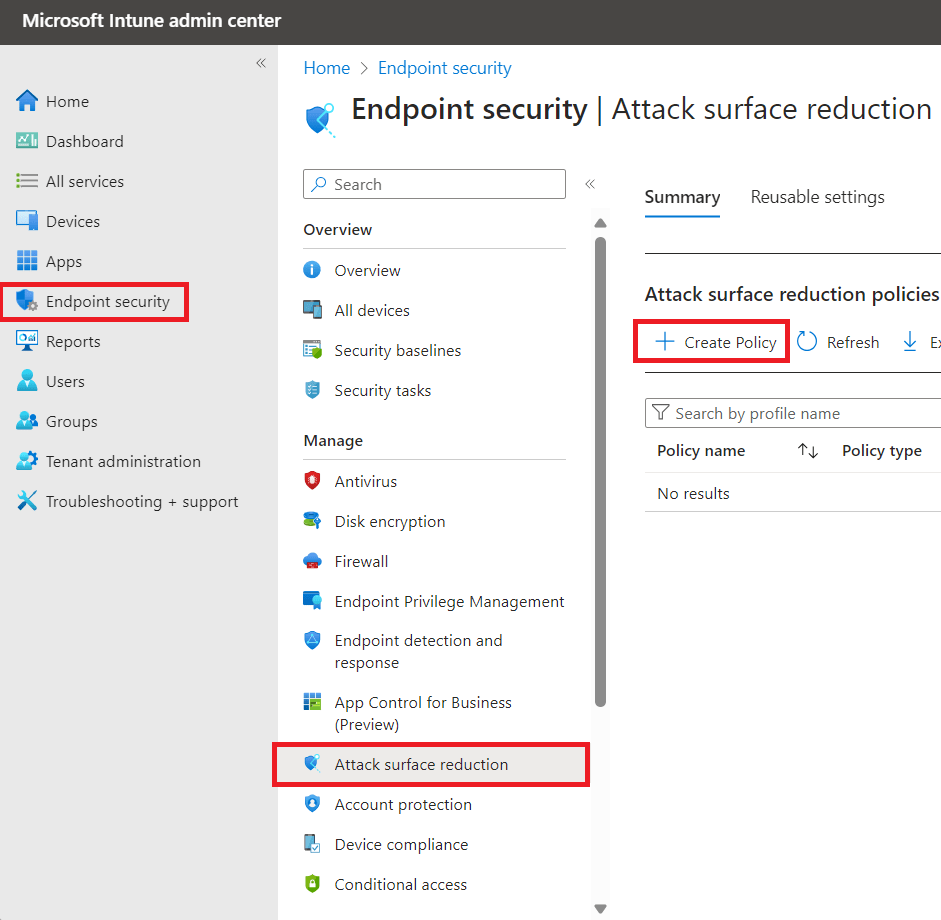
We head over to the portal at https://intune.microsoft.com/ > Endpoint security > Attack Surface Reduction > Create Policy
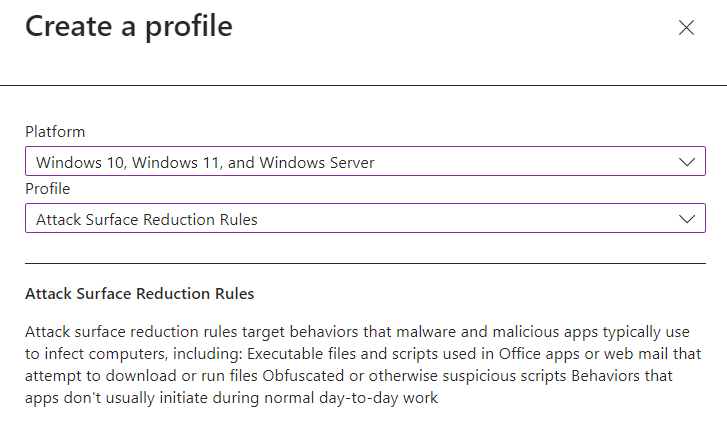
Select the options as shown below.
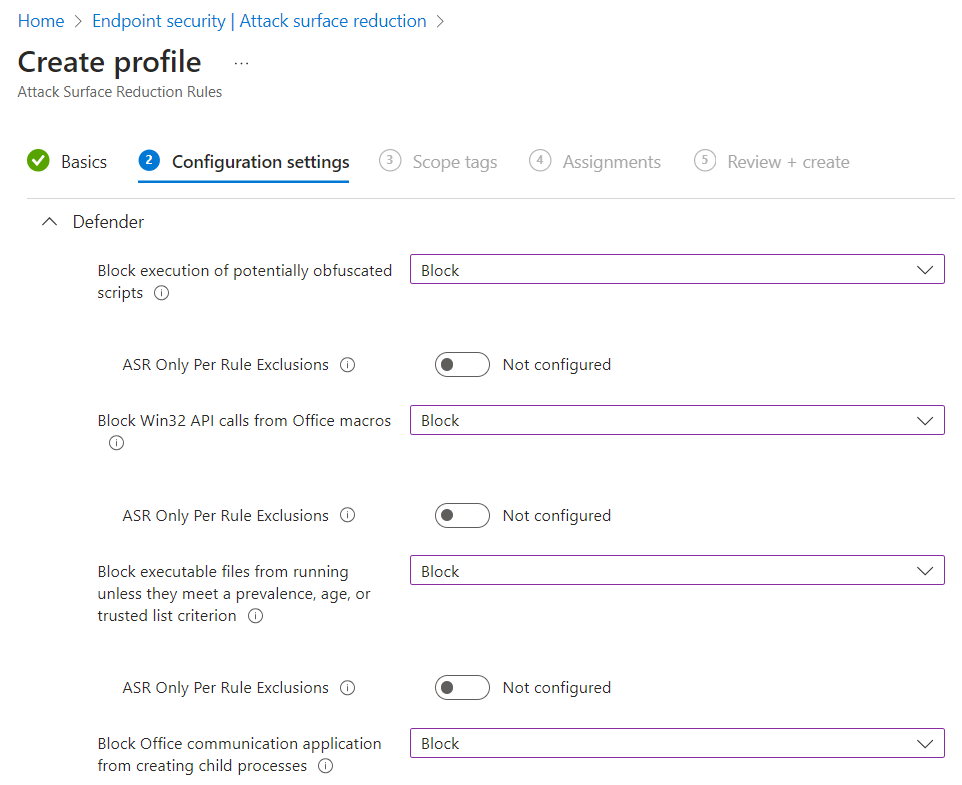
Provide a name and description then we can move onto setting our chosen configuration. The settings in the following screenshots are correct for our test environment, you MUST test fully before setting any ASR rule in block mode, and as a precaution we recommend setting all rules to audit for at least a month before changing any to block. When setting to block ensure this is done in small groups and given a sufficient period of testing before being rolled out to the wider organisation. This cannot be stressed enough.


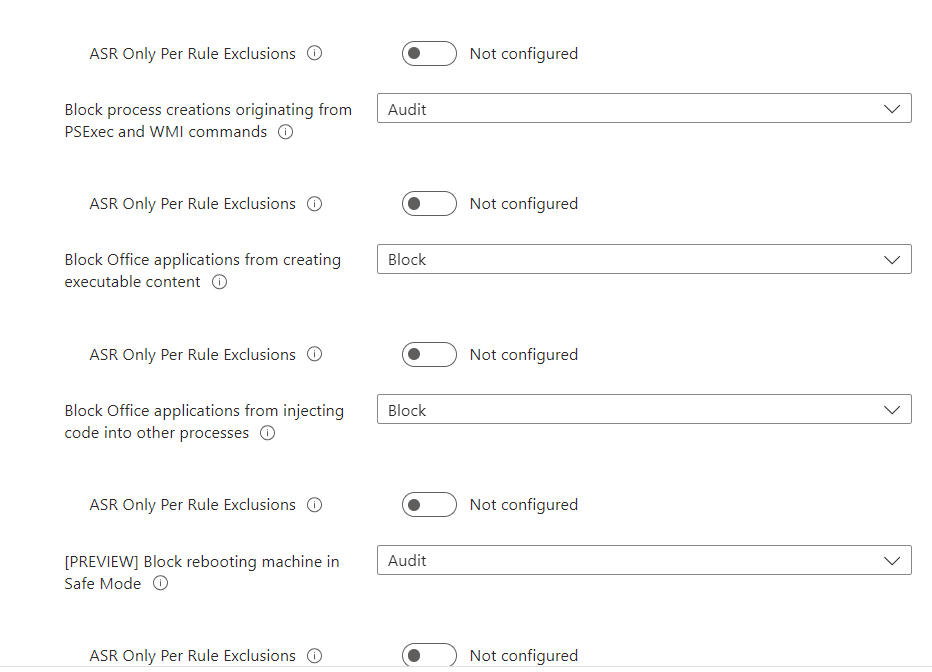

Once our chosen configuration is in place we need to assign it to a group of devices either via tags or Group Assignments, we have chosen to apply it to the All Devices Group which applies it to ALL devices. Do not use this assignment in a live environment unless you have thoroughly tested and are confident it will not negatively impact legitimate business requirements.
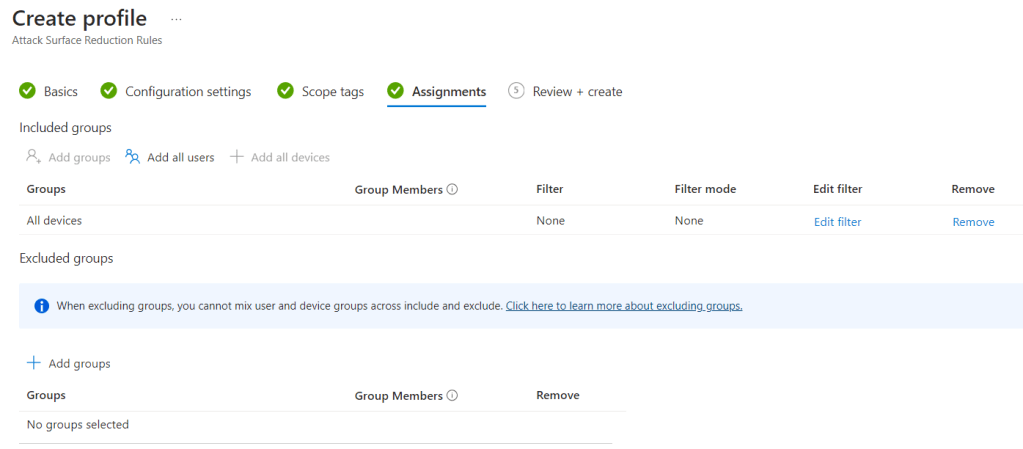
Last step is to check, confirm and save.
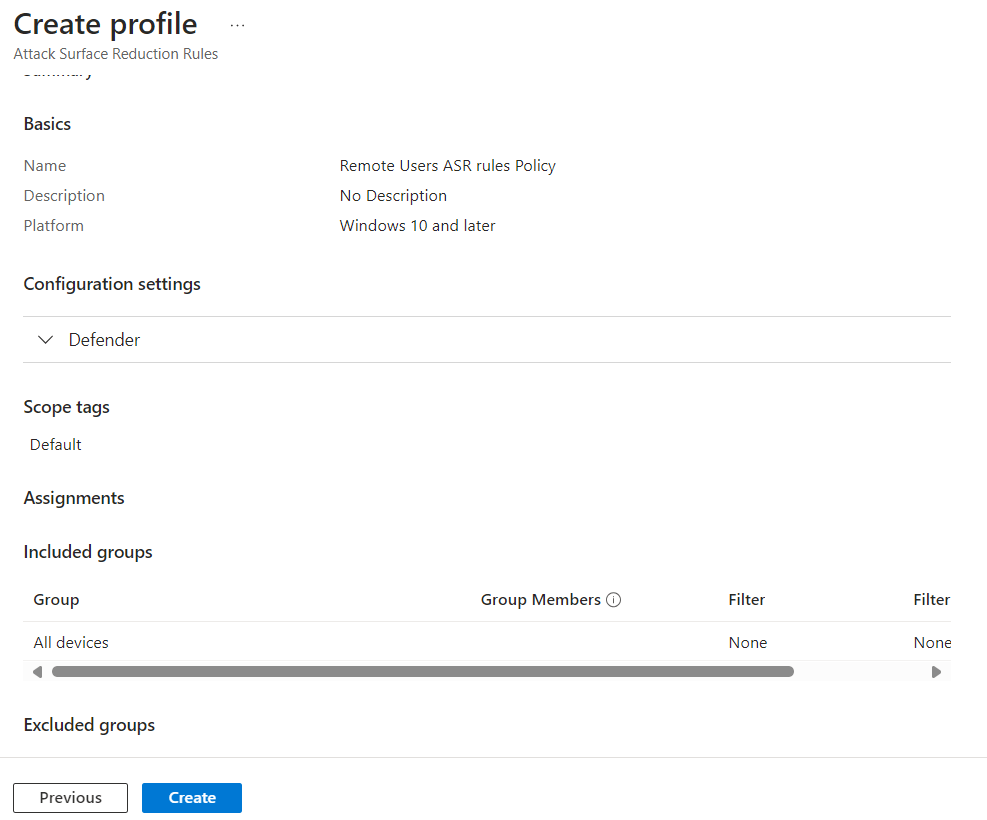
We are now using ASR rules and significantly improved our security posture and reduced our attack surface.
 @2codemonte